
You can use a USB flash drive or another external volume as a startup disk to install macOS. These steps are meant for system administrators and experienced users.
Do you need a bootable installer?
You don’t need a bootable installer to upgrade or reinstall macOS. Most people can update using Software Update or the App Store. A bootable installer is useful when:
- Other installation methods don’t work
- You want to install macOS on multiple Macs without downloading the installer each time
Connect and rename a USB flash drive
- Connect a USB flash drive (or another external volume) directly to your Mac.
- Make sure it has enough space. A 32GB flash drive works for all installers. For older versions, 16GB is usually enough.
- Rename the drive to MyVolume. The Terminal commands below expect this name.
- Remember: the drive will be erased during the process.
List of Commands
- Sequoia:
sudo /Applications/Install\ macOS\ Sequoia.app/Contents/Resources/createinstallmedia --volume /Volumes/MyVolume - Sonoma:
sudo /Applications/Install\ macOS\ Sonoma.app/Contents/Resources/createinstallmedia --volume /Volumes/MyVolume - Ventura:
sudo /Applications/Install\ macOS\ Ventura.app/Contents/Resources/createinstallmedia --volume /Volumes/MyVolume - Monterey:
sudo /Applications/Install\ macOS\ Monterey.app/Contents/Resources/createinstallmedia --volume /Volumes/MyVolume - Big Sur:
sudo /Applications/Install\ macOS\ Big\ Sur.app/Contents/Resources/createinstallmedia --volume /Volumes/MyVolume - Catalina:
sudo /Applications/Install\ macOS\ Catalina.app/Contents/Resources/createinstallmedia --volume /Volumes/MyVolume - Mojave:
sudo /Applications/Install\ macOS\ Mojave.app/Contents/Resources/createinstallmedia --volume /Volumes/MyVolume - High Sierra:
sudo /Applications/Install\ macOS\ High\ Sierra.app/Contents/Resources/createinstallmedia --volume /Volumes/MyVolume - El Capitan:
sudo /Applications/Install\ OS\ X\ El\ Capitan.app/Contents/Resources/createinstallmedia -
Use Terminal to create the bootable installer
- Open Terminal from the Utilities folder in Applications, or search for it with Spotlight.
- Copy and paste the command above that matches the macOS installer in your Applications folder, then press Return.
- Enter your administrator password when prompted. Terminal won’t show characters as you type.
- Type Y when asked to confirm erasing the volume, then press Return.
- Wait while Terminal erases the drive and copies the installer. If Terminal asks for permission to access removable volumes, click OK.
- When finished, your flash drive will be renamed to match the installer (for example, Install macOS Ventura).
- Quit Terminal, then eject and disconnect the flash drive.
Use the bootable installer
Your Mac must be connected to the internet during installation to get firmware updates and model-specific information.
Mac with Apple silicon
- Shut down your Mac.
- Connect the bootable installer.
- Press and hold the power button until startup options appear.
- Select the bootable installer, then click Continue.
- When the installer opens, follow the onscreen instructions.
Any other Mac
- Shut down your Mac.
- Connect the bootable installer.
- Turn on your Mac and immediately press and hold the Option (Alt) key.
- Release when you see startup volumes. Select the bootable installer, then press Return or click the arrow.
- If your Mac has the Apple T2 Security Chip and won’t start from the installer, check Startup Security Utilityand allow booting from external media.
- Choose your language if asked.
- Select Install macOS (or Install OS X) from the Utilities window, then click Continue.
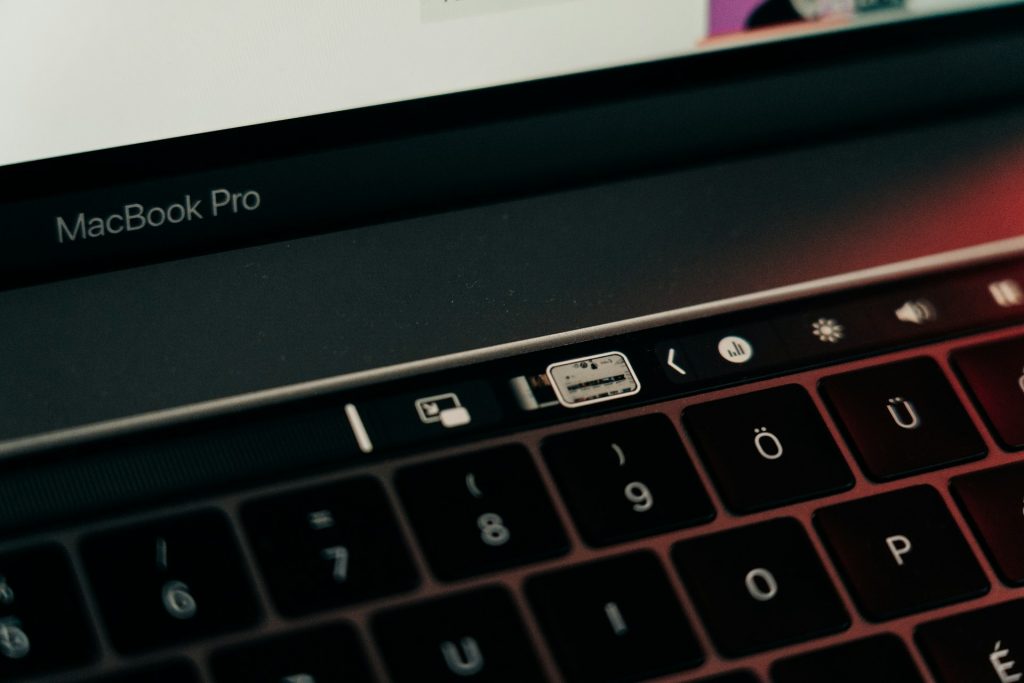
Photo by Szabo Viktor on Unsplash